How Buildy Works for You
Buildy is your entire building team in one chat—handling strategy, design, and tech work at the same time. On this page you'll learn, in plain language, exactly how Buildy understands your messages, how it looks at and updates your pages, how it uses your links, screenshots, and uploaded files, how it sometimes checks the live internet, how it stores people in Contacts and app records, how the smart chat and voice helpers behave, how it connects to outside tools, and what its clear limits and safety rules are. The more you understand how Buildy thinks, the faster and more confidently you can build your app together. You'll often use the Dashboard for naming, security, Contacts, and AI settings, while Buildy handles the actual building and fixing of your pages when you talk to it.
Be Specific with Buildy (Genie Rules)
Think of Buildy like a helpful genie: it follows your instructions exactly as you say them. If you’re vague, it has to guess what you want—and its guess might not match your vision. The more specific you are about your goal, your audience, and the details you care about, the more professional and "right" the result will feel.
Examples: Vague vs. Specific
"Make my home page nicer."
"Make my home page feel calmer: softer colors, more white space, and a bigger hero photo. Keep the main headline but make the subheading shorter and easier to read."
"Add a form for my business."
"Add a contact form for new clients with fields: name, email, budget, and project type. Save new leads to Contacts so I can follow up later."
"Add a chatbot."
"Add a support chatbot that answers questions about my pricing and opening hours. If the question is about refunds, ask for their email and send me a summary by email."
Quick recipe for a strong request
- 1Who this is for (your audience)
- 2What you want them to do (your main goal)
- 3Any rules or limits (what must not change)
- 4Any links or files Buildy should reuse
- 5How you want it to feel (tone or style)
Try something like this:
Blueprint + Small Chunks: Best Way to Start
When starting a new app or a big feature, begin with one rich "blueprint" message. This tells Buildy exactly what you want to achieve, who will use it, and how your data should be organized. Once Buildy has this blueprint, you can then ask for small, focused steps that build on it one at a time. This pattern helps Buildy avoid guessing about your app's structure or how your data connects.
What to include in your blueprint
- Who this is for (your audience)
- What the app should do (main goal)
- Who can see what (public vs. logged in vs. admin)
- What people and records you need (e.g., Contacts for leads, Bookings for appointments)
- Any 'do not change' rules (e.g., specific prices or copy)
Try pasting this template into chat:
"Here’s my blueprint:
- • Audience: [e.g. Local dog owners]
- • Main goal: [e.g. A booking site for grooming appointments]
- • Who sees what: [e.g. Public home page, customers see their own bookings, I see all bookings]
- • People & records: [e.g. Contacts for leads with name, phone, dog name; Bookings with date, time, service type]
- • Things that must not change: [e.g. My business hours and contact phone number]
After this, please work in small steps. First, let's design the public home page only. If anything is unclear about my users, contacts, records, or how the pages flow together, ask me questions instead of guessing."
Understanding your messages
Buildy reads plain English and follows your step-by-step instructions with precision. It remembers the context and details of your current chat session, which allows you to build on previous ideas naturally. However, it only knows what you've shared in the active conversation—so if you start a new session, it’s a good idea to quickly remind it of the key parts of your project. Giving specific examples helps tremendously; for instance, saying 'make this headline bigger and bolder, like a newspaper title' works much better than just 'change this text.' If it ever misses the mark, you can correct it gently by saying 'that’s not what I meant, I meant X,' and it will adjust its understanding immediately.
Seeing and updating your app
Buildy has a full 'live view' of your project's current pages, layouts, and styles. It acts as both a designer and a developer, meaning you can ask it to add entirely new sections, rearrange blocks of content, tweak spacing, change colors, or even rewrite your copy to sound more professional. It can also add gentle animations to make your site feel more dynamic and modern. While it focuses on making everything look great and ensuring your site is mobile-friendly on both phones and laptops, it also works within the platform's structure to keep your deeper security and authentication systems safe and separate.
Fixing problems (debugging)
When something isn't working right—like a button that doesn't click, a page that crashes, or a layout that looks messy—you can simply describe the problem in plain language. Behind the scenes, Buildy can actually look at technical error messages and failed behaviors happening in your app preview to figure out exactly what went wrong. Once it understands the issue, it plans a fix and applies the change automatically. You can then refresh your preview to see the results. If things still aren't perfect, you can repeat this process as many times as needed until your app feels solid, polished, and professional.
Web search & the live internet
Sometimes you might need fresh info from the internet, like the latest pricing for a service or current feature lists. Buildy can scan public pages across the live web to gather the facts or ideas you need. It can not only read these pages but also turn that into structured outputs like bullet lists, pros/cons tables, or updated pricing sections—and it only does this when you explicitly ask it to.
Learning from other websites
When you share a link to a website you admire, Buildy can 'read' that page to understand its structure. It uses this as a blueprint to help you recreate a similar layout for your own app, but tailored to your specific branding and voice. Buildy can mix what it learns from reference sites with your own files and notes, so you get layouts that feel familiar but have your unique voice and offers.
Images, files, and data you upload
You can upload screenshots, logos, PDFs, and spreadsheets directly into Buildy. For example, it can turn a pricing PDF into structured records and a matching pricing table on the page, saving you from any re-typing. Buildy only sees the files you explicitly choose to upload into the project; it never scans your computer or cloud drives on its own.
Contacts and app data (your app’s memory)
Most apps need to remember people and business records. Leads, customers, and form submissions go to Contacts, your CRM under the Dashboard. Data Management stores the app’s own database records (orders, bookings, custom tables) and is for advanced users only, because edits there change the live database. Contacts and other stored data also power dashboards, smart emails, and AI helpers.
Smart helpers (chat & voice)
Buildy can add powerful AI assistants to your app. Chat helpers answer frequent questions, while Voice helpers can talk to people directly in their browser or even call real phone numbers to follow up on form submissions. Chats and calls can be logged so you can refine the agents, and some Text Agents can even email a human when they reach a tricky question they can't answer.
External tools and helpers
For popular services like email providers, calendars, or payment tools, Buildy has ready-made connections to help your app work seamlessly with the tools you already use. For other specialized services, it can set up custom 'behind-the-scenes helpers' that allow your app to send or receive data in a controlled and safe way. You keep full control over your sensitive access keys and secrets by storing them in the Dashboard. Buildy uses these keys only to make the technical connections work and ensures they are never shown on your public pages where visitors could see them. The Dashboard → Integrations and Dashboard → Backend Functions pages are the two main places where these external tools are wired up.
How Buildy uses links and files together
A typical flow might involve you sharing a website link, a PDF brochure, and a short description of your goal. Buildy first reads the link for layout inspiration and the PDF to extract pricing and service details. It then creates a plan for your pages and records, and finally builds out the entire structure—including your landing page, a thank-you page, and lead capture into Contacts—so everything works together perfectly from the very first click.
Website Links
PDFs & CSVs
Your Voice
Instant Build
Using the Visual Editor
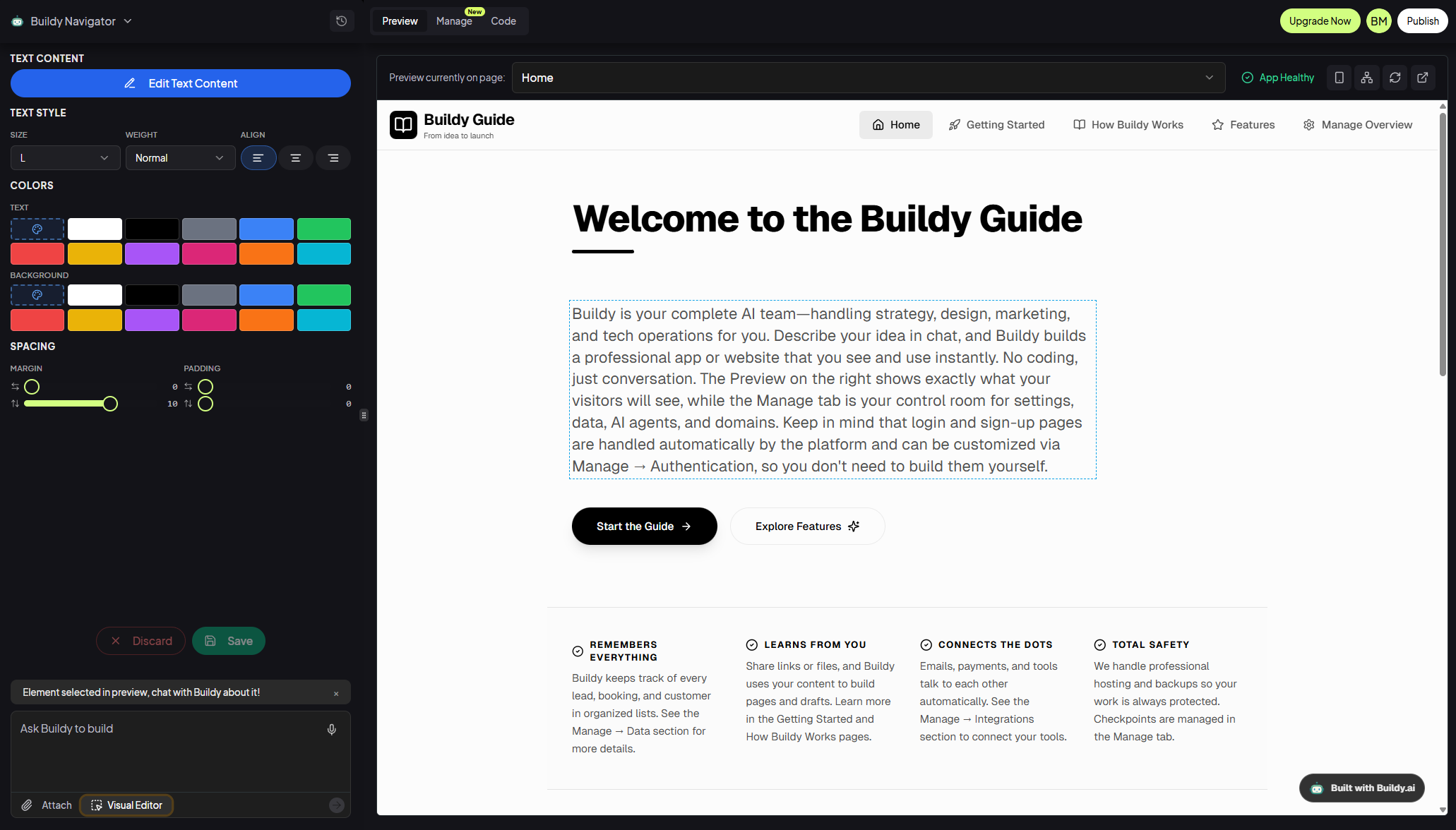
The Visual Editor appears when you click the Visual Editor button in the chat area. It lets you click any part of the page preview and then adjust text size, colors, and spacing from the left panel. You can still talk to Buildy while it’s open (“change this” vs. clicking sliders yourself), and both work together.
What you can do here
- 1Click on text in the preview to select it.
- 2Use the left panel to change size, colors, and spacing.
- 3Click Save to keep the change, or Discard to undo.
Parts you cannot edit here
Some parts of your page are powered by logic or live lists of data—like a dashboard that updates automatically or a repeating list of items from your database. These special blocks are "locked" in the Visual Editor because they follow specific rules to keep your data safe.
To change how these dynamic areas look or work, just talk to Buildy in the chat. Describe what you want to see differently, and Buildy will update the rules and layout for you.
When to use it
Use chat when you want bigger changes (new sections, layouts). Use the Visual Editor for small, fast tweaks like “make this headline bigger” or “add more padding around this block”.
What Buildy cannot do
Being clear about limits helps us work together better.
No Computer Access
Buildy cannot see or touch files on your actual computer or phone—it only knows what you tell it or upload. It never browses your folders or cloud drives on its own.
No Private Account Access
It cannot log into your personal email, social media, or bank accounts for you. It cannot reset passwords or read your private messages.
No Automatic Publishing
Buildy creates previews for you to review; it will never publish changes to your live site without your explicit permission. You always click 'Publish & Share' yourself when you’re ready.
No Platform Overrides
It cannot change core platform security, billing settings, or your current pricing plan. These administrative changes are always handled in your account settings.
No Legal Guarantees
Buildy provides tools and drafts, but it's not a lawyer or accountant. Any important legal, tax, or compliance decisions should be reviewed by a professional.
Even with these powers, Buildy always stays within what you tell it and cannot act on your behalf outside the app (like logging into bank accounts), ensuring total safety.
If you’re not sure what to say
Try copying and pasting these examples into your chat to see how Buildy can help you plan and build:
Ready to build?
You don't need to be an expert. Just start talking to Buildy and let it handle the rest. You bring your ideas, links, and files; Buildy turns them into a working app step by step, while you stay in control of every change before it goes live.
Relevant Keywords: how buildy works, blueprint message, visual editor, web search, links and files, contacts, data management, ai chatbot, voice agent, integrations, backend functions, limits, safety, checkpoints.
